How to Use the Tyver API: A Complete Guide to Automating Your Ad Spy Workflow ⚙️
You don’t have to search and collect Facebook ads manually. In some cases, it’s much easier to let scripts and algorithms handle the process, saving you both time and effort. Tyver provides an API integration for automated ad search and data collection. 🤖
What Is the Tyver API and What Can You Use It For?
A typical Tyver workflow looks like this: you open the ad spy tool, enter a search query, apply the necessary filters, and get a list of matching ads.

The Tyver.io API lets you hand over the entire search and filtering process to a program, eliminating much of the manual work.
💡 For example, let’s say you search for gambling creatives targeting the US every day and sort the results by how long the ads have been running. With the API, you can write a program that automatically sends Tyver requests with these parameters and retrieves the matching ads for you.
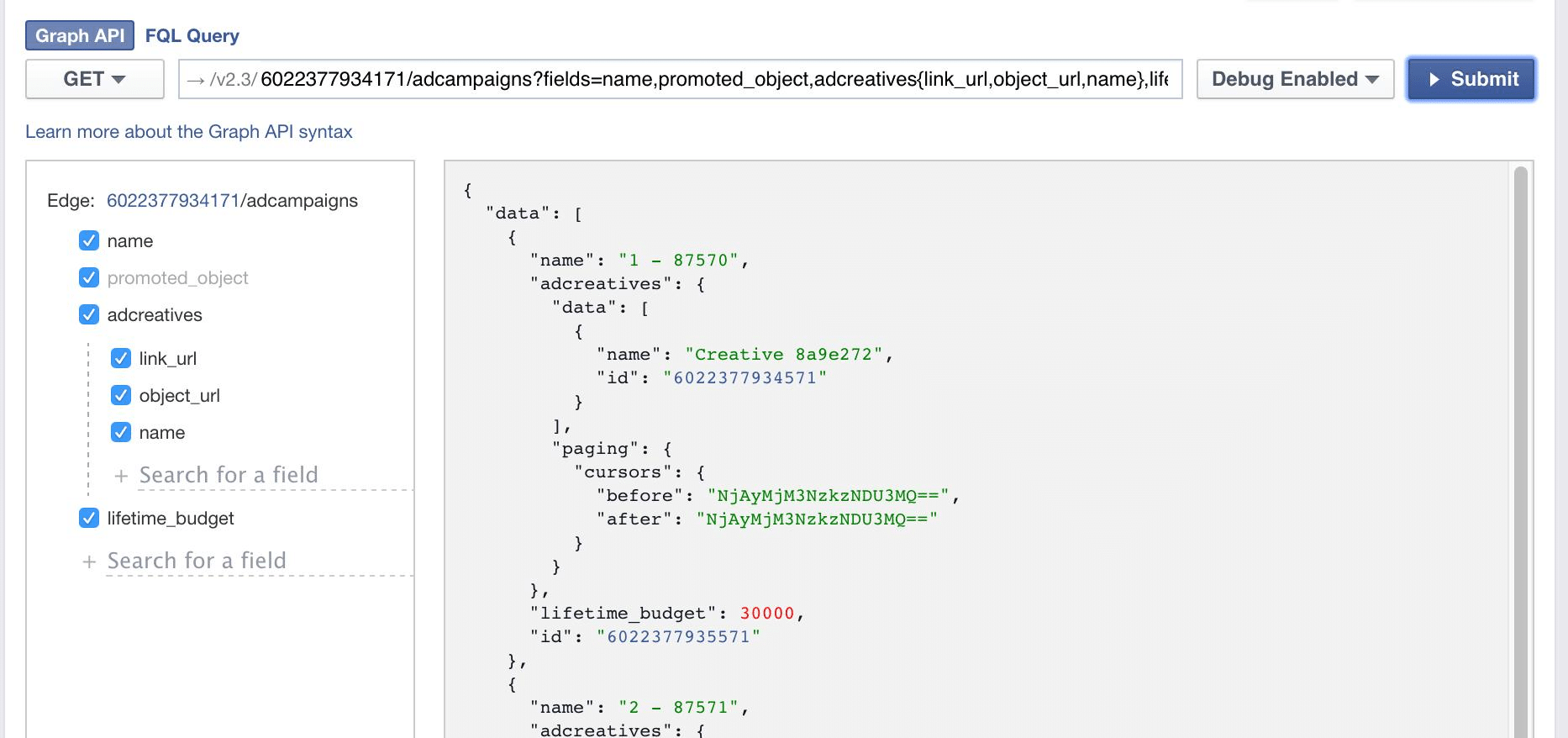
To send and process requests, Tyver provides a dedicated API endpoint, which is the same for all users, and an API key that is unique to your account. The key tells the service that the request is coming from you. Your program sends a request to the shared endpoint using your individual API key, and Tyver returns the data requested.
Creatives retrieved through the API can then be delivered to a Telegram bot, displayed on a web page, or processed by your own custom application. 📲
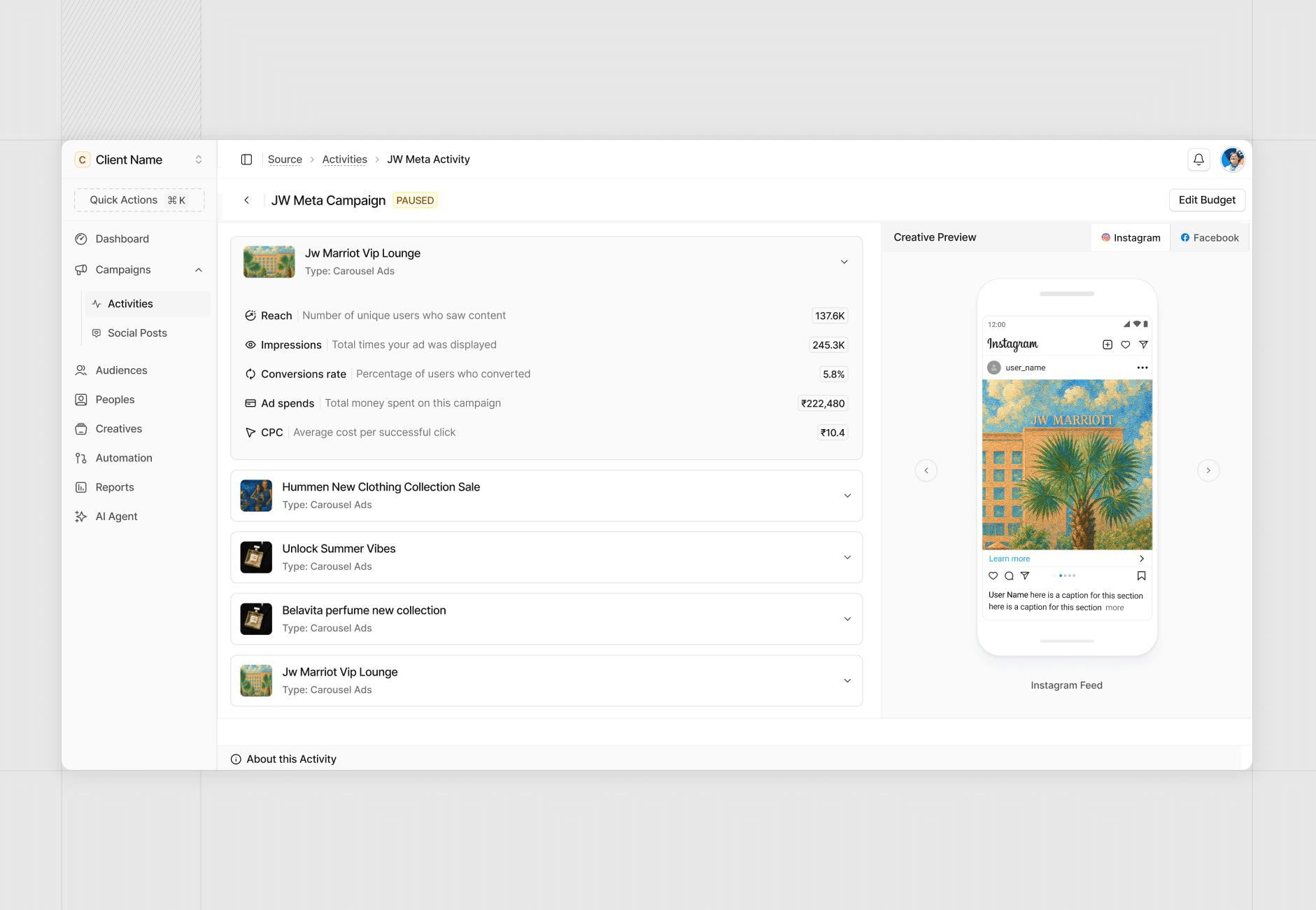
The API returns much more than just the ad creative itself. You can also retrieve:
- 📝 Ad copy;
- 🌍 Target country;
- 🗣 Language;
- 📅 Launch date and last activity date;
- 👤 Fan page;
- 📍 Placements;
- 🔗 Target URL;
- 🎞 Creative type and links to images or videos.
🇪🇺 For some ads shown in the EU, additional audience data is available, including age, gender, and estimated impressions. The API also returns verticals and vertical_subcategories values, with 37 subcategories in total, including specific games such as AVIATOR.
Advantages of the API Over the Web Interface
⚡ The main advantage of API automation is that you don’t have to waste time on repetitive tasks. Set up your search template once, and it can keep doing the work for you until you stop it.
Manual search and automation are better suited to different tasks. Suppose you only need to find e-commerce ads running in the US once. In that case, it’s much easier to open the Tyver ad spy tool and run the search manually. Writing a search script, connecting to the API, and setting up a separate interface to display the results would be unnecessary.
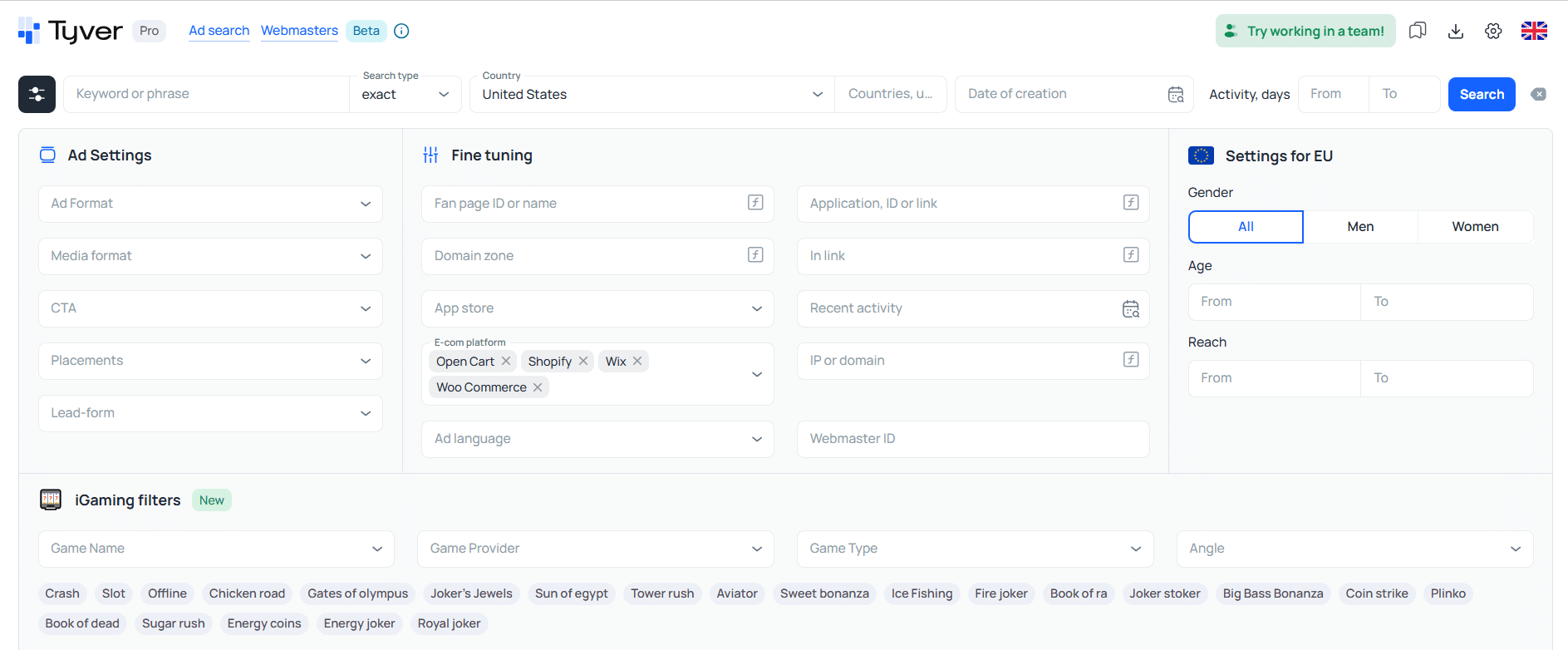

🔄 Now consider a different scenario: you’ve found several interesting online stores and need to monitor changes in the creatives they’re running every day. You could, of course, create a search template based on their domains and fan pages, but you’d still have to use it manually every day:
- 1️⃣ Open the Tyver website;
- 2️⃣ Run a search using the saved template;
- 3️⃣ Review the newest ads while ignoring the ones you’ve already seen the day before.
This is where API automation starts to make sense:
- 1️⃣ You configure a request using the search parameters you need;
- 2️⃣ Tyver processes the request and returns the search results to your program;
- 3️⃣ If configured accordingly, the program shows you the ads that appeared today and highlights creatives that are no longer running.
👥 The search results can also be delivered directly to the people who need them. For example, a marketer can configure the search parameters while the results are automatically sent to the media buyers.
How to Connect to the Tyver API
🔑 First, you’ll need an API key (authorization token). You can get it from this page, but you’ll need a Tyver account and must be logged in to access it.
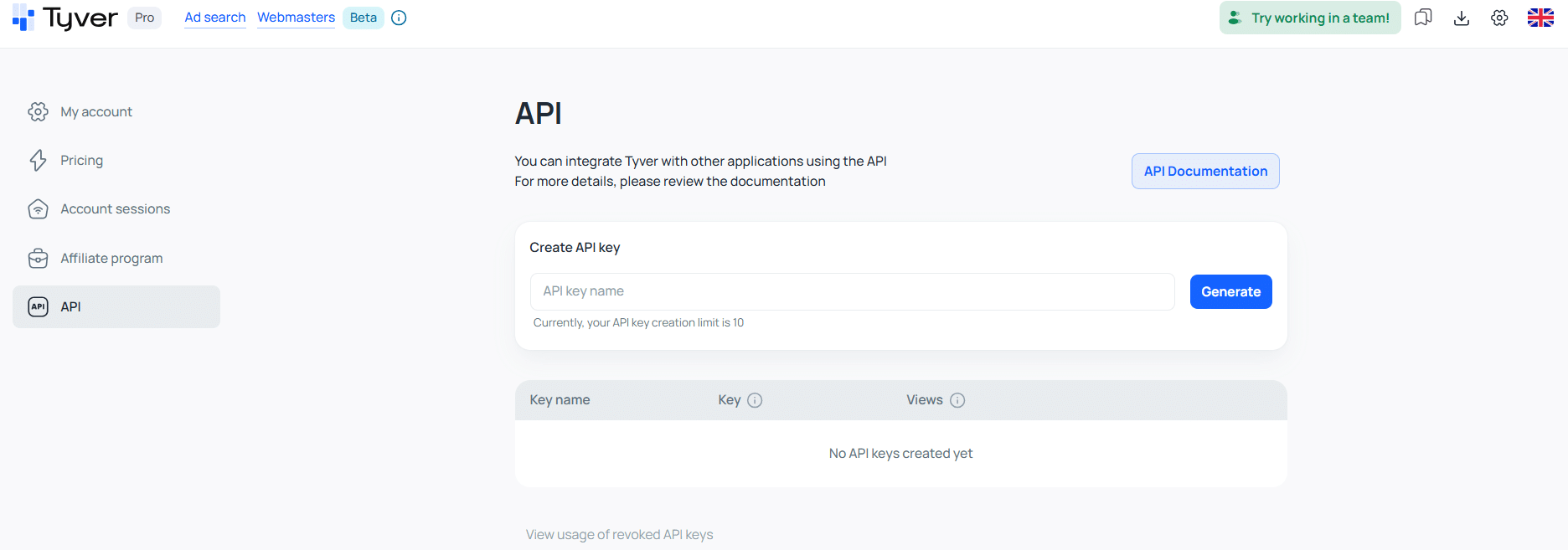
Enter a name for the key and click Generate. ⚠️ You can copy the token only once, immediately after it is created. Once you close the window containing the key, the token will be hidden and you won’t be able to view it again.
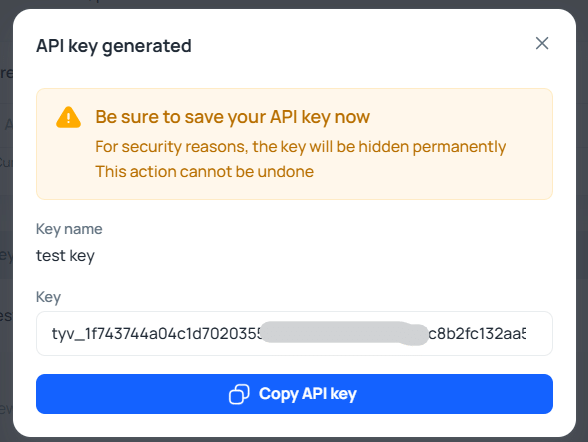
Next, you need to specify the address your program will use to communicate with Tyver, along with your access token.
The base URL for requests to the Tyver Public API is:
https://api.tyver.io/public/v1
Pass your token in the following HTTP header:
X-Tyver-Authorization: tyv_****
How to Test Your API Key
To check that everything is working correctly, we’ll use the GET request provided in the documentation.
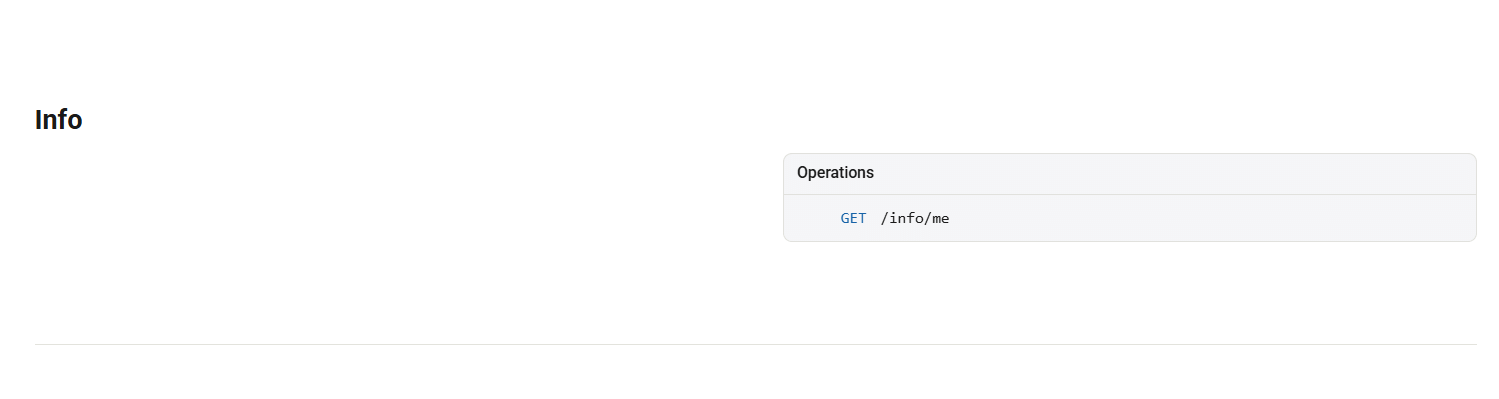
The full request will look like this:
curl -X GET "https://api.tyver.io/public/v1/info/me" \
  -H "X-Tyver-Authorization: tyv_****"
Tyver will return information about your current plan and the number of remaining ad views:
{
  "detail": "Success",
  "data": {
    "remainder_views": 30000,
    "tariff": "PRO"
  }
}
📊 In this example, PRO is your current plan, while remainder_views: 30000 means you have 30,000 ad views remaining under that plan. The counter resets at the beginning of the next billing period. Tyver’s API uses the same plans and limits as the regular web version of the ad spy tool.
Overview of the Tyver API Documentation and Main Endpoints
You can find all available commands and requests in the Tyver API documentation. Let’s take a look at some of the most important ones.
| Method and endpoint | Purpose |
| GET /info/me | Check your current plan and remaining limit |
| GET /creatives/ | Find creatives using specified filters |
| GET /creatives/{provider_id} | Get full details for a specific creative |
| GET /blacklist/ | Get the list of blacklisted fan pages |
| POST /blacklist/ | Add a fan page to the blacklist |
| DELETE /blacklist/ | Remove a fan page from the blacklist |
The method indicates what type of action the request performs:
- 🔍 GET retrieves information;
- ➕ POST adds data;
- 🗑️ DELETE removes data.
GET /creatives/: The Main Endpoint for Searching Ads
This endpoint is used to search for and retrieve creatives. Think of the request as the API equivalent of Tyver’s search bar and filters: you specify your search and filtering parameters directly in the HTTP request.
For example, you can use:
- countries=US
- media_types=VIDEO
- languages=en
- vertical=GAMBLING
In this case, we’re asking Tyver to find English-language video creatives for gambling campaigns targeting the US.
A GET request can include the same types of search and filtering parameters available in Tyver’s web interface.
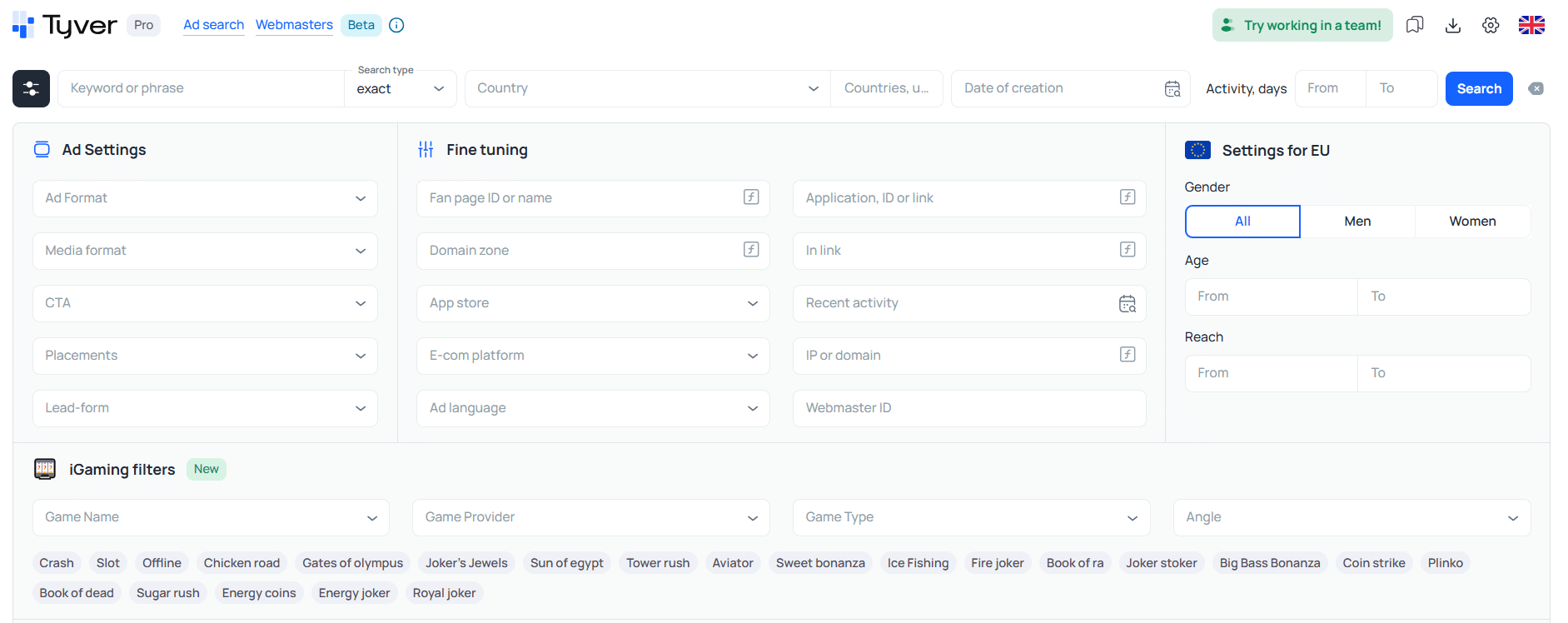
📦 The response includes the ad copy, GEO, fan page, CTA, placements, activity dates, target URL, and media. Images and videos are returned in the media field. If needed, your program can also retrieve additional media data, including the file type, size, preview, and even a download URL.
GET /creatives/{provider_id}: Retrieving a Specific Ad
Each creative has a provider_id, a unique identifier assigned to the ad by the advertising platform. You can use this ID to retrieve data for a specific creative:
GET /creatives/1234567890
💾 Suppose you’ve found an interesting creative and saved its ID, 1234567890. The next day, you want to check whether it’s still running, how many additional views it has received, and other updated information.
Instead of running another filtered search, you can simply send:
GET /creatives/1234567890
This gives you up-to-date information about the saved ad. GET /creatives/{provider_id} can also be used for other workflows, such as CRM integrations. For example, you can access a specific creative directly from your CRM and immediately assign or forward it to the person responsible for reviewing it.
/blacklist/: Managing the Blacklist
Suppose you want to exclude certain fan pages from your search results. The following requests can help:
- 📋 GET /blacklist/ retrieves the current blacklist;
- ➕ POST /blacklist/?fan_page_id=123456 adds a fan page to the blacklist;
- 🗑️ DELETE /blacklist/?fan_page_id=123456 removes it from the blacklist.
🚫 The /creatives/ endpoint also supports the without_blacklist=true parameter, which excludes creatives from blacklisted fan pages from your search results. This means you can blacklist an unwanted advertiser once and prevent their ads from cluttering future searches.
How to Use the Tyver API: Telegram Bot Code Example
Now that we know the key requests, let’s write a simple Telegram bot that searches Tyver through the API. 🤖 In addition to your Tyver API token, you’ll need a Telegram Bot Token for the integration. This token allows your program to send messages through Telegram and can be obtained from BotFather.
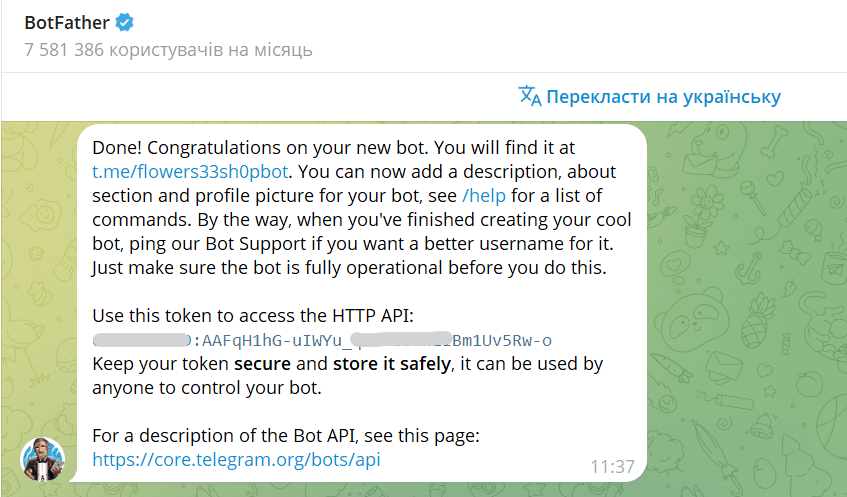
🐍 We’ll write the code in Python, as it’s one of the easiest languages to use for tasks like this.
Working Code Example
First, install the requests library:
Bash
pip install requestsNext, create a file called bot.py and paste in the following code:
import requests
import time

TYVER_KEY = "tyv_****"
BOT_TOKEN = "YOUR_TELEGRAM_BOT_TOKEN"
TG_API = f"https://api.telegram.org/bot{BOT_TOKEN}"
TYVER_API = "https://api.tyver.io/public/v1"

offset = 0

while True:
    updates = requests.get(
        f"{TG_API}/getUpdates",
        params={"offset": offset, "timeout": 30},
        timeout=40
    ).json()

    for update in updates.get("result", []):
        offset = update["update_id"] + 1
        message = update.get("message", {})

        if message.get("text") != "/ads":
            continue

        chat_id = message["chat"]["id"]

        response = requests.get(
            f"{TYVER_API}/creatives/",
            headers={"X-Tyver-Authorization": TYVER_KEY},
            params={
                "countries": "US",
                "media_types": "VIDEO",
                "languages": "en",
                "vertical": "GAMBLING"
            },
            timeout=30
        )

        if response.status_code != 200:
            requests.post(
                f"{TG_API}/sendMessage",
                json={"chat_id": chat_id, "text": "Tyver API error"},
                timeout=30
            )
            continue

        ads = response.json()["data"]["items"][:5]

        for ad in ads:
            text = (
                f"Page: {ad.get('provider_page_name')}\n"
                f"GEO: {', '.join(ad.get('countries') or [])}\n"
                f"Text: {(ad.get('bodies') or [''])[0][:500]}\n"
                f"ID: {ad['provider_id']}"
            )
            requests.post(
                f"{TG_API}/sendMessage",
                json={"chat_id": chat_id, "text": text},
                timeout=30
            )

    time.sleep(1)
Run the script with the following command:
Bash
python bot.py🚀 Now open the Telegram bot you created and send it the /ads command.
The bot will respond with the creatives it finds.
How Does the Code Work?
The entire process can be broken down into five steps.
- When the user sends /ads, the search starts.
- The script sends a GET request to Tyver using the following filters: countries=US, media_types=VIDEO, languages=en, and vertical=GAMBLING.
- Tyver returns a JSON response containing the matching creatives and their data.
- Python selects the first five ads. This is handled by [“items”][:5]. Note that this does not limit the number of ads returned by the API: it simply selects five creatives from the list that has already been received.
- The bot sends the results to Telegram. It creates a separate message for each creative containing the advertiser’s fan page, GEO, ad copy, and ad ID.
✅ The user no longer needs to open Tyver, configure the filters, and manually copy the creatives they find. All they have to do is send the /ads command to the bot.

‼️ IMPORTANT! This example is a minimal, very basic demonstration of the integration, not a production-ready bot designed to run 24/7. It only handles the /ads command and only searches the gambling vertical. For real-world use, you would need to add network error handling, fix the way target URLs are displayed, implement keyword and filter-based searches, and add many other commands.
How to Use the Tyver API: The Yellow Web Example
🎯 An affiliate marketing team wants to minimize manual searching. The task is simple: the script should automatically deliver gambling creatives every morning, while the media buyers review the results and select the ones they want to work with.
⏰ Every morning, a controller is triggered on a schedule. It reads the tasks and constraints configured for that particular run.
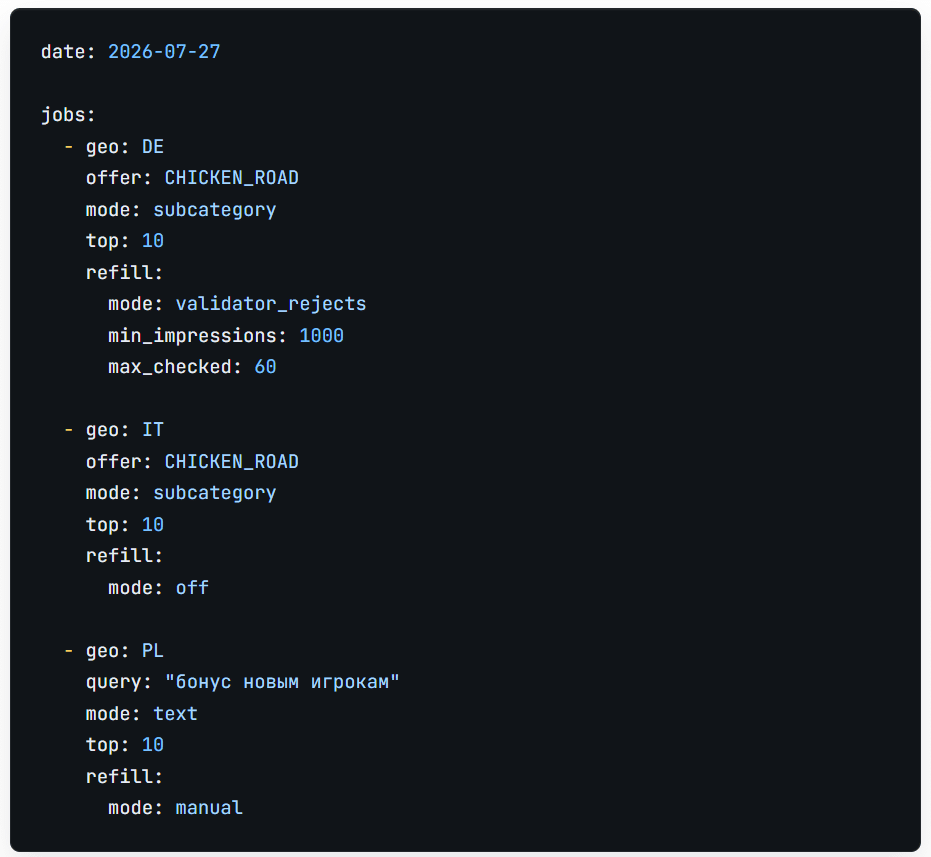
The operators work as follows:
- top sets the required number of creatives for each task;
- refill.mode controls the refill mode: disabled, triggered manually, or enabled after validator rejections;
- min_impressions stops the refill process once impressions fall below the specified threshold;
- max_checked limits the total number of ad cards reviewed.
The task date is converted into an exact API date range: creation_date_gte=2026-07-27 and creation_date_lte=2026-07-27. From there, the workflow proceeds step by step:
- 1️⃣ A standard worker calls the Tyver CLI and retrieves up to 60 ad cards for each task;
- 2️⃣ Tyver sorts the ads by impressions in descending order. The worker takes the first ten;
- 3️⃣ The code removes exact duplicates and searches the internal database for similar files. If a creative has been seen before, the team’s previous decisions are retrieved;
- 4️⃣ A validator agent labels each creative as accept, review, or reject and explains its decision;
- 5️⃣ Accepted cards are added to the gallery, while questionable ones are sent for human review.
If refill after validator rejections is enabled for a task, the controller takes the next cards from the results that have already been retrieved. This mode is disabled during a standard run.
🗄️ The internal database starts growing from the very first run. It stores ad cards, files, and media buyers’ decisions. When an exact duplicate is detected, the system increments the re-upload counter for the existing card. For a similar creative, the system displays the previous labels and decisions if the team has already reviewed it.
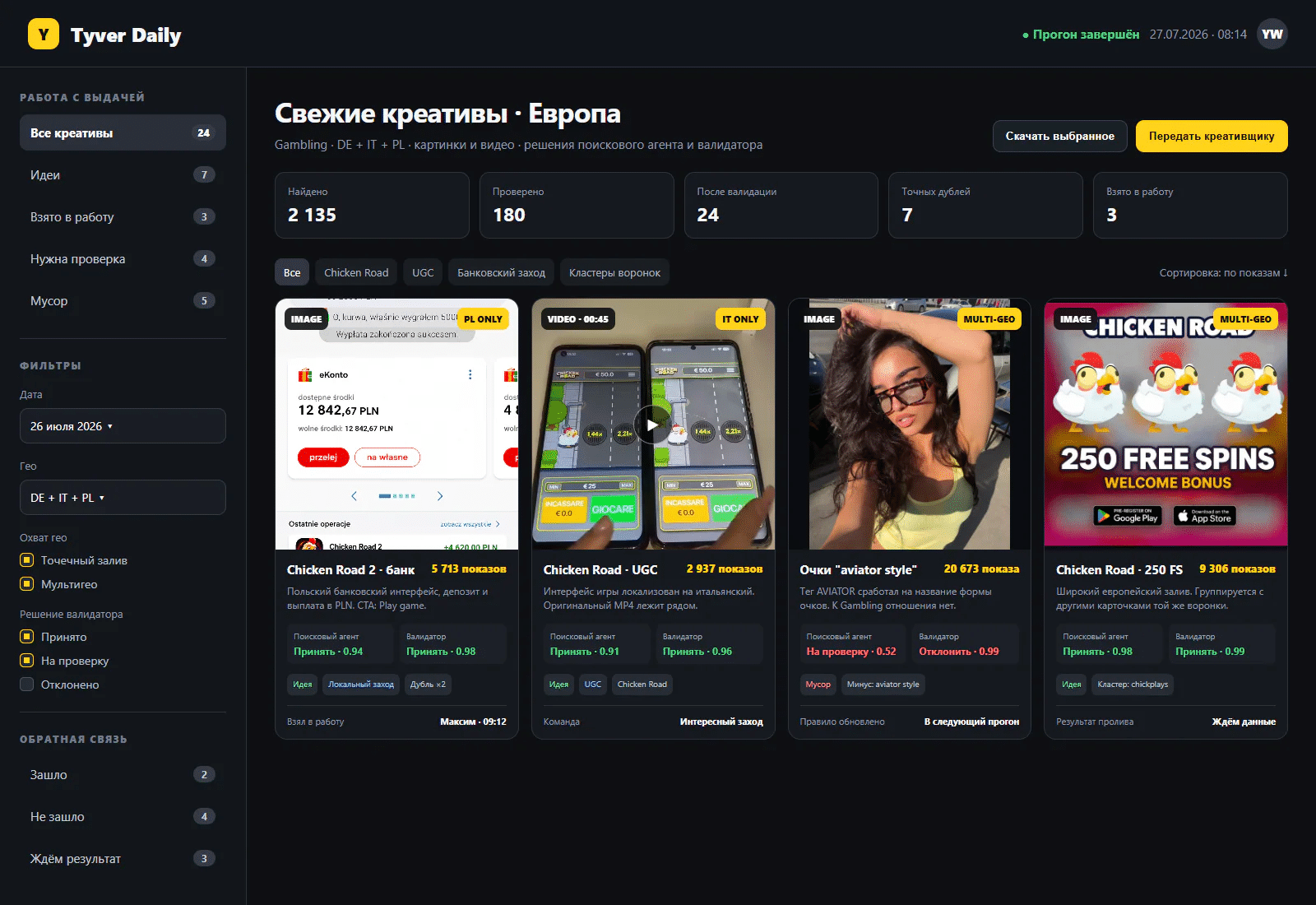
The working interface where the creatives collected through the Tyver API are displayed.
📖 Read the full case study with more useful details in the original source.
Common Tyver API Errors and How to Fix Them
🛠 Code that works with Tyver through the API may not always run successfully on the first try. Sometimes, it can return errors. Let’s look at the most common ones listed in the documentation and how to troubleshoot them.
Error 401: API Key Issue
🔐 401 Unauthorized means that Tyver was unable to authenticate the request. In most cases, the API key is missing, incorrect, or no longer valid.
There are two things you should check: the token itself and the header name. Tyver requires the key to be passed exactly like this:
X-Tyver-Authorization: tyv_****
After configuring the key, start by sending a GET /info/me request. If it successfully returns your plan and remainder_views, authentication is working, and you should look elsewhere for the cause of errors in other requests.
Error 403: No API Access or Ad View Limit Reached
⛔ 403 Access denied can occur in two cases: either the endpoint is not available on your current plan, or you’ve used up your ad view limit.
To reduce the chances of running into this error:
- 1️⃣ Check GET /info/me before starting the automation;
- 2️⃣ Run one test search;
- 3️⃣ Check /info/me again.
This lets you see how many views were deducted and roughly estimate how long your remaining allowance will last. You can also tighten your filters to exclude irrelevant ads and avoid retrieving creatives you don’t need, helping preserve your available views.
Errors 400 and 422: Invalid Request Parameters
⚙️ Another common issue is incorrectly configured search parameters. For example, the API expects specific values and formats:
- media_types=VIDEO
- vertical=GAMBLING
- creation_date_gte=2026-09-01
If you pass an unsupported value, use an invalid date format, or specify an incorrect combination of parameters, the request may fail with a 422 validation error.
Pay particular attention to values explicitly listed in the documentation. For example, creative types use the specific values IMAGE, VIDEO, and CAROUSEL, while supported platforms include facebook, instagram, audience_network, messenger, whatsapp, oculus, and threads.
A 400 Bad Request error can occur, for example, when an invalid cursor is supplied. For this reason, you should not create or modify the cursor for the next page yourself. Use exactly the value returned by Tyver in the previous response.
Conclusion
The Tyver API shows its real value when you’re working with large volumes of data or running the same searches on a regular basis. If you only search for creatives manually a couple of times a day, the web version will probably be more convenient.
🚀 But if you monitor advertisers every day or retrieve hundreds of creatives for adaptation, the Tyver API can save a significant amount of time by automating repetitive manual tasks.
The tool isn’t limited to affiliate marketing either. It can also be useful in digital marketing, SMM, and even sociological research involving user preferences.
🤔 Do you actually need the API? If you open Tyver, find a few ads, and move on with your work, an API integration is probably unnecessary. But if you regularly repeat searches using the same filters and parameters or distribute creatives to team members at scale, you can connect the Tyver API in the corresponding section of your account.
FAQ
❓ Where can I get a Tyver API key?
You can generate a token under Account → API. Here’s a direct link to the API section.
❓ Is the Tyver API available on the free trial plan?
No. API integration requires a paid PRO or Team plan.
❓ What are the API rate limits per minute?
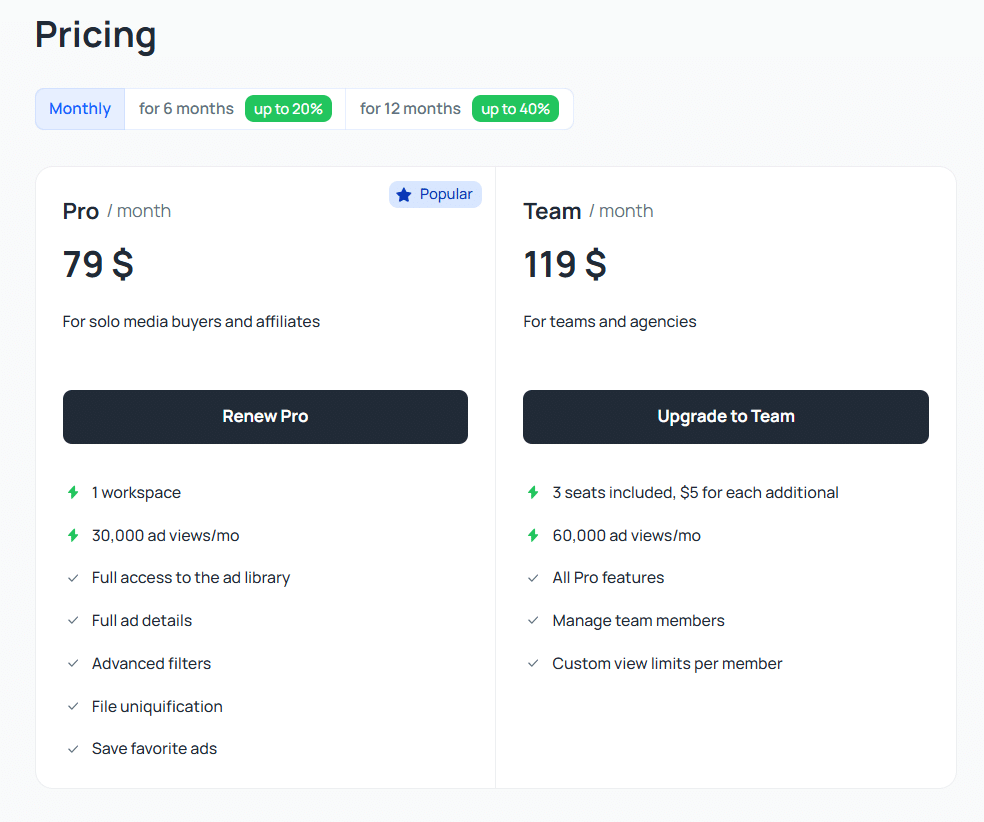
There is no limit on the number of requests per minute. Instead, Tyver limits the number of ad views per month: up to 30,000 on the PRO plan and up to 60,000 on the Team plan. Once you use up your ad view allowance, requests that consume this limit will become unavailable until the next paid billing period begins.
❓ Can I download original Facebook video creatives through the API?
Yes. The API response includes links to image and video files, along with their previews, in the media field.
❓ Which programming languages can I use with the Tyver API?
You can use any programming language capable of sending HTTP requests, including Python, JavaScript, PHP, Java, C#, Go, and others.